
Outlook
Connect to Microsoft Outlook. Manage emails, calendar events, contacts, and tasks
Connect to Microsoft Outlook. Manage emails, calendar events, contacts, and tasks

Supports authentication: OAuth 2.0
Set up the agent connector
Section titled “Set up the agent connector”Register your Scalekit environment with the Outlook connector so Scalekit handles the authentication flow and token lifecycle for you. The connection name you create will be used to identify and invoke the connection programmatically. Then complete the configuration in your application as follows:
-
Create the Outlook connection in Scalekit
-
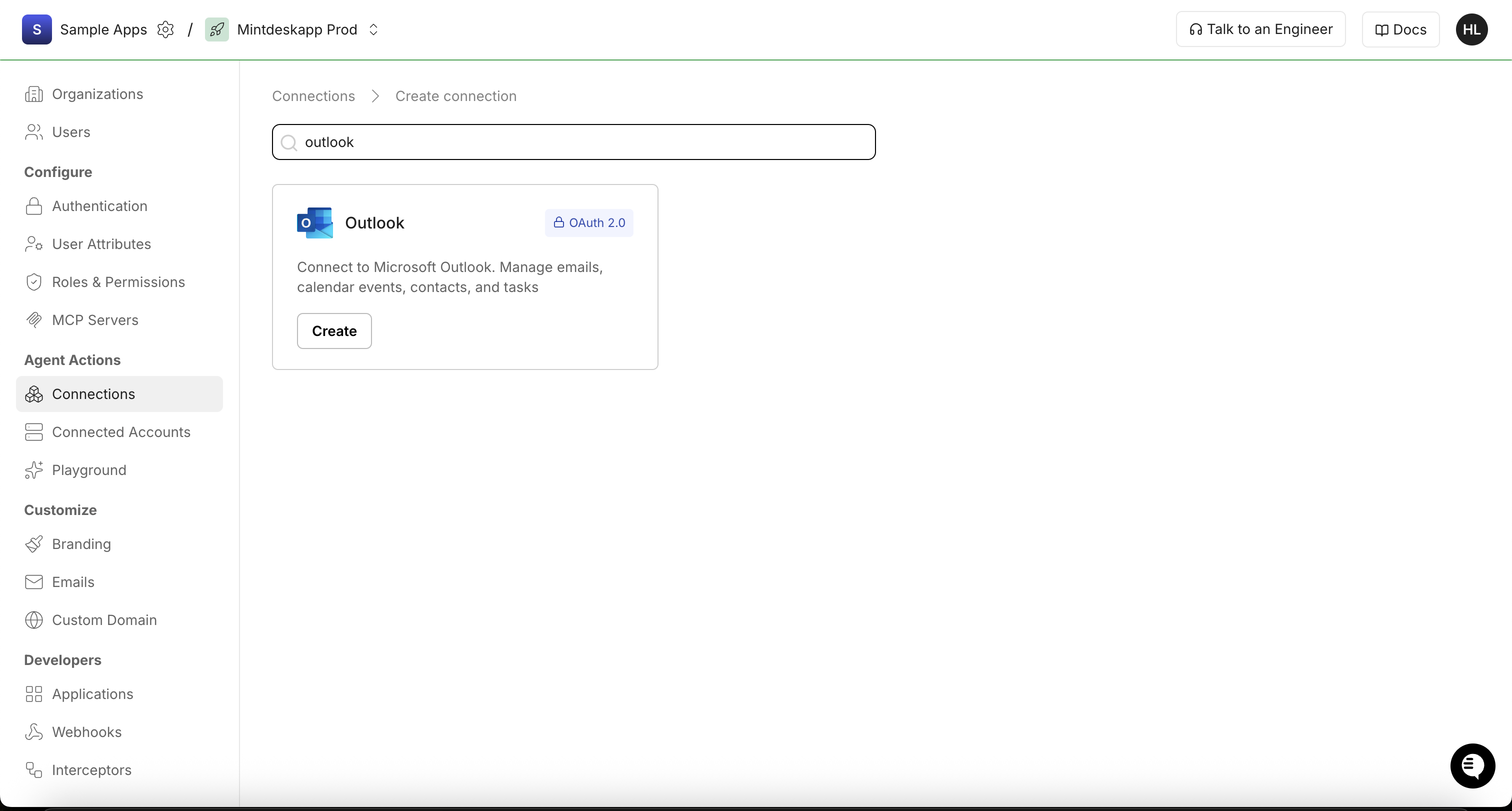
In Scalekit dashboard, go to Agent Actions → Connections and click + Create Connection. Search for Outlook and click Create.
-
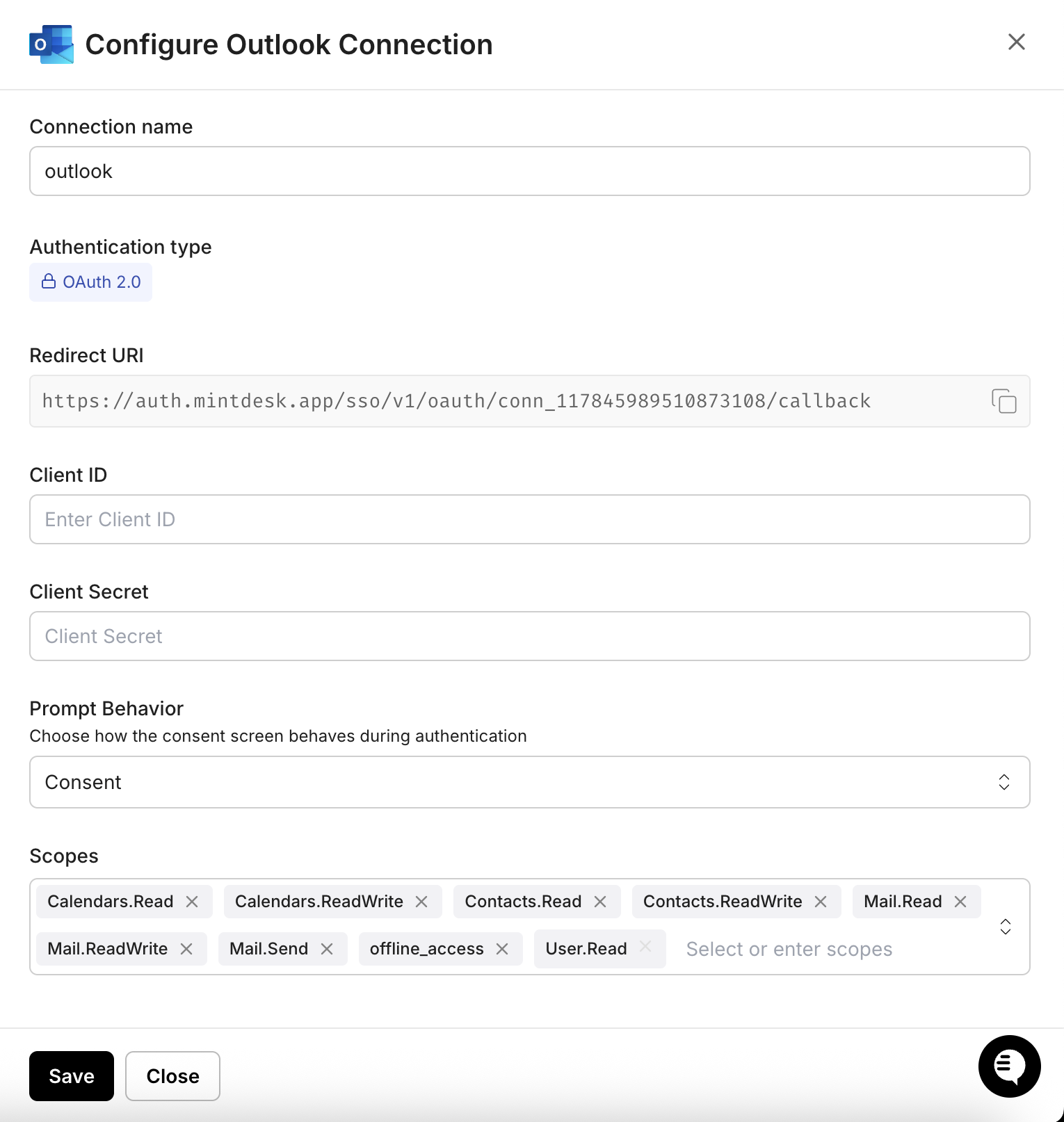
In the Configure Outlook Connection dialog, copy the Redirect URI. You will need this when registering your app in Azure.
-
-
Register an application in Azure
-
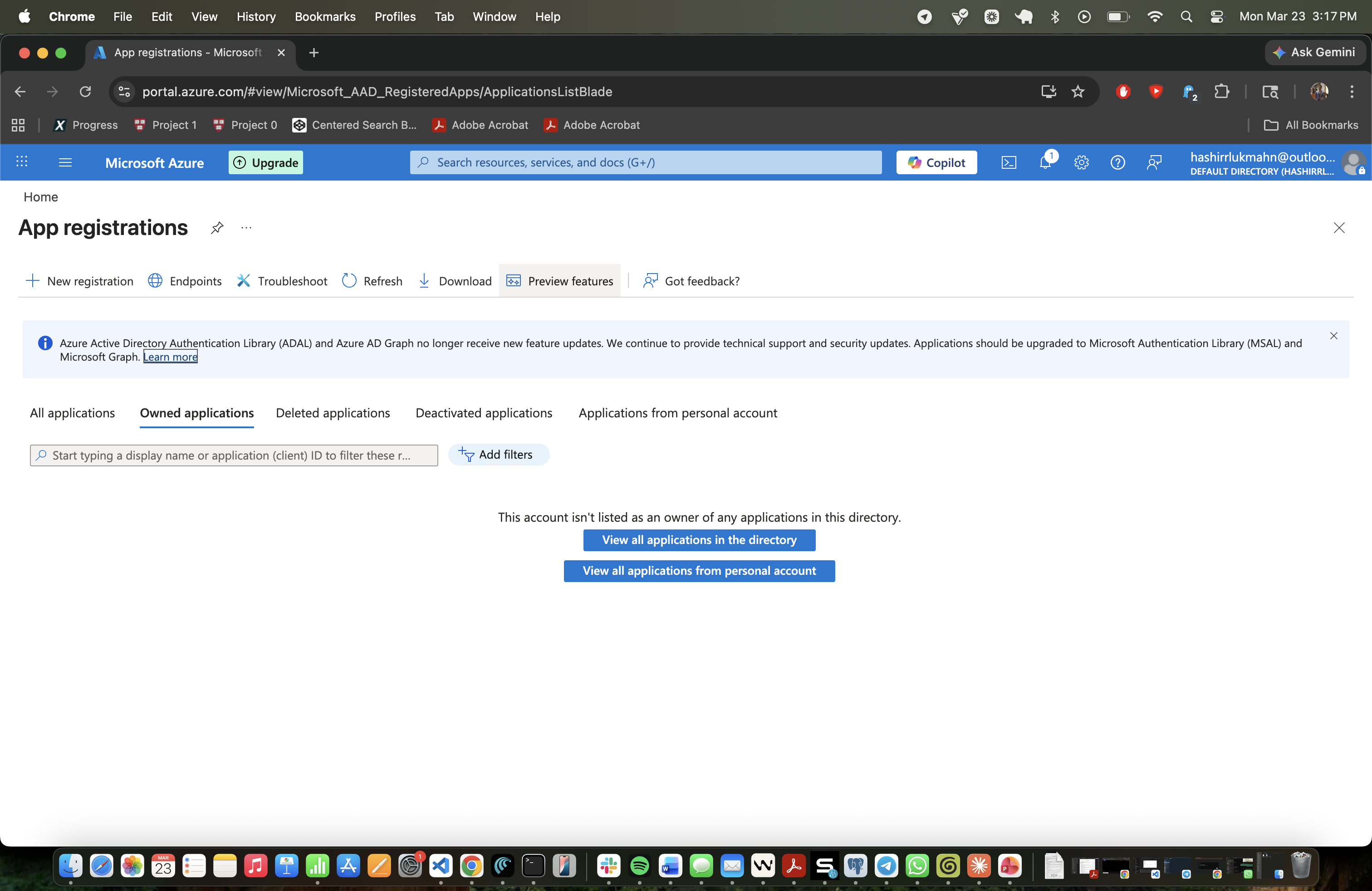
Sign into portal.azure.com and go to Microsoft Entra ID → App registrations.
-
Click New registration. Enter a name for your app (for example, “Scalekit Outlook Connector”).
-
Under Supported account types, select Accounts in any organizational directory (Any Microsoft Entra ID tenant - Multitenant) and personal Microsoft accounts.
-
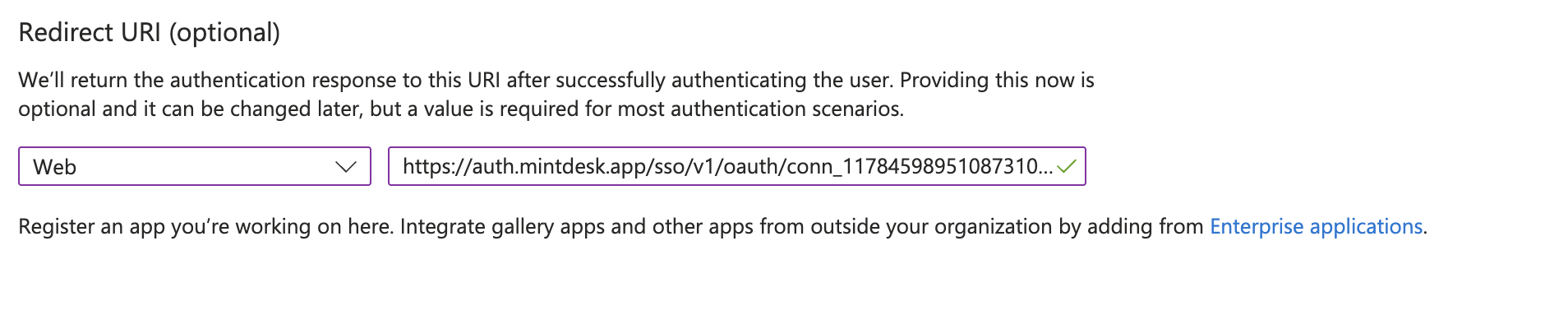
Under Redirect URI, select Web and paste the redirect URI you copied from the Scalekit dashboard. Click Register.
-
-
Get your client credentials
-
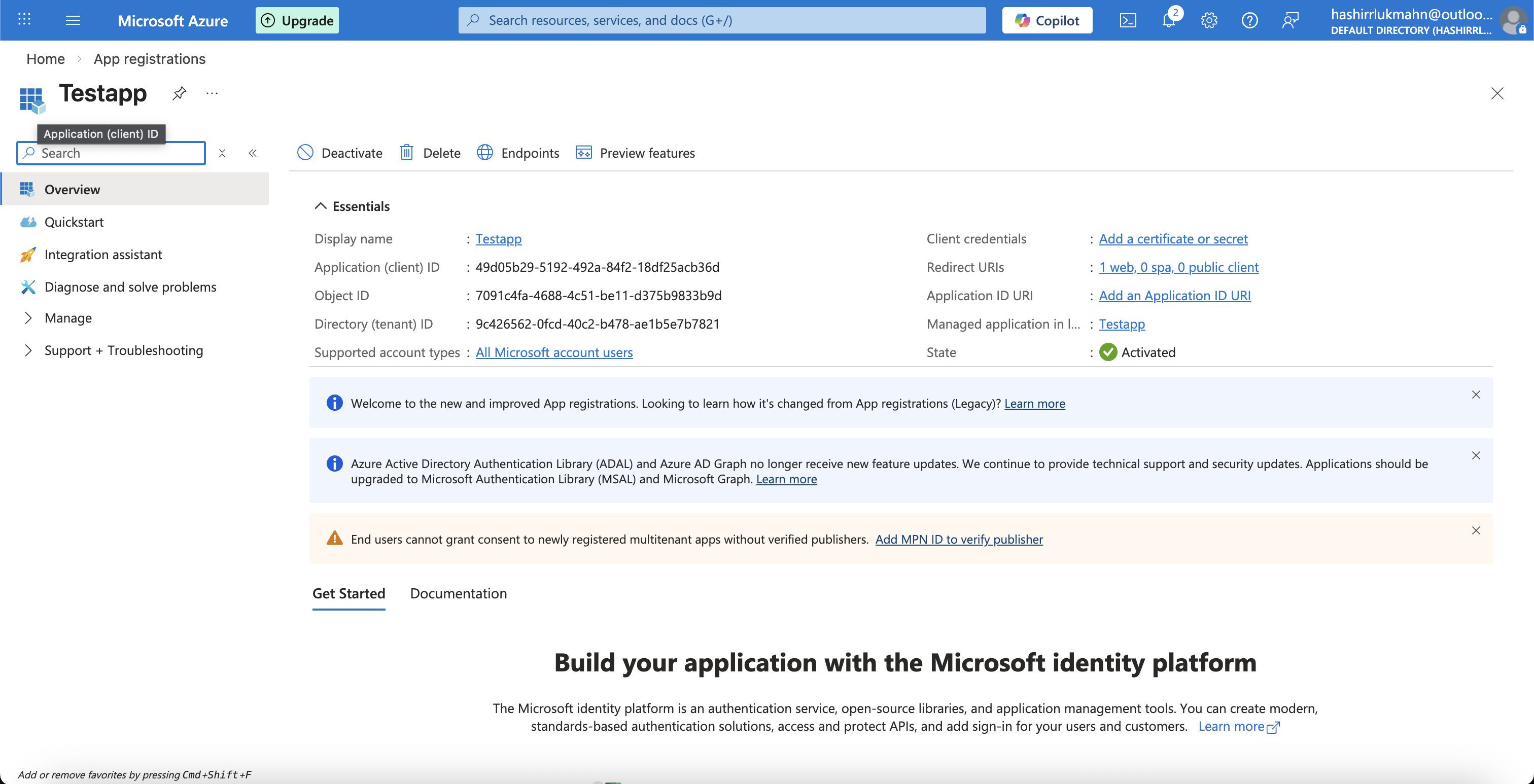
From the app’s Overview page, copy the Application (client) ID.
-
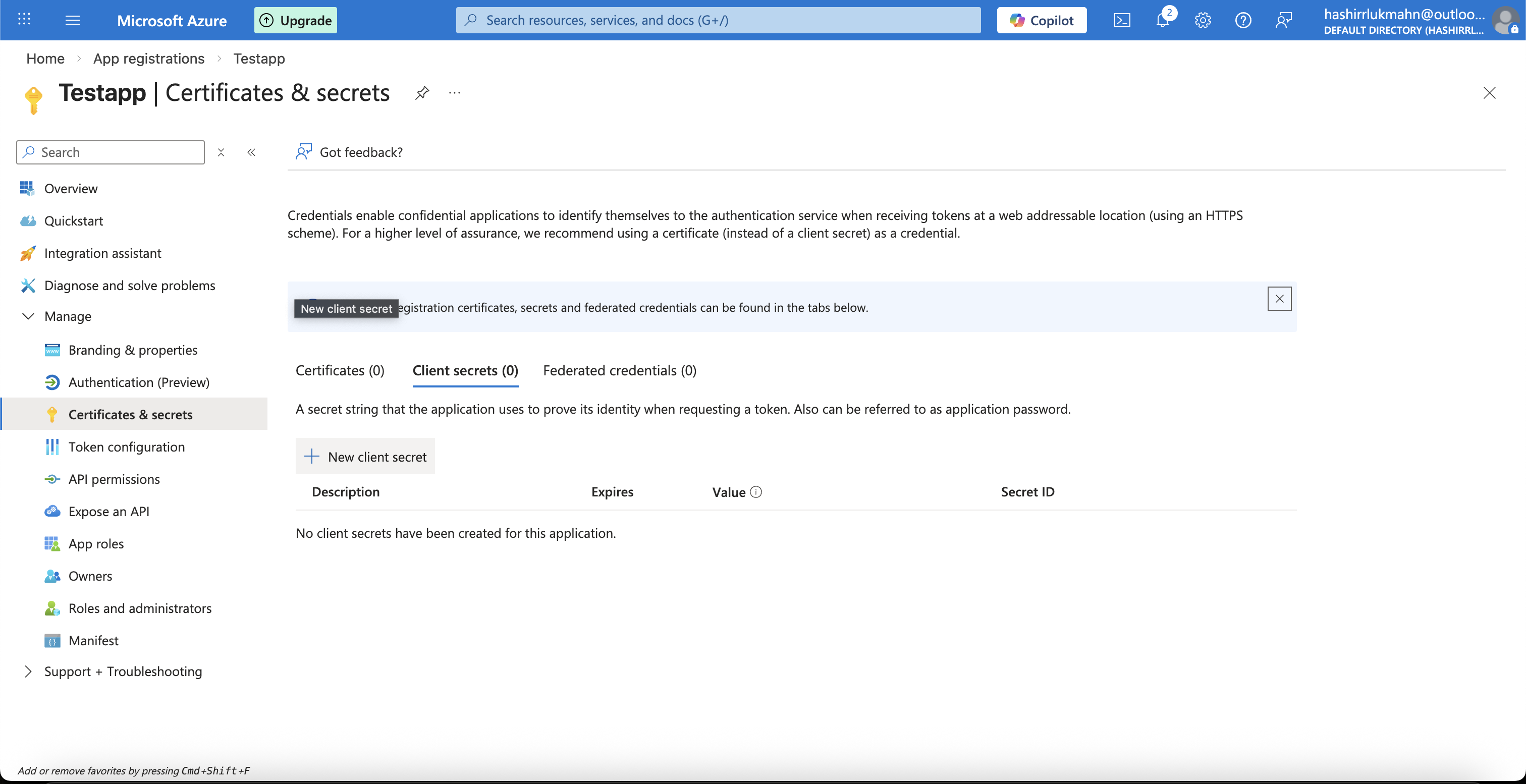
Go to Certificates & secrets in the left sidebar, then click + New client secret.
-
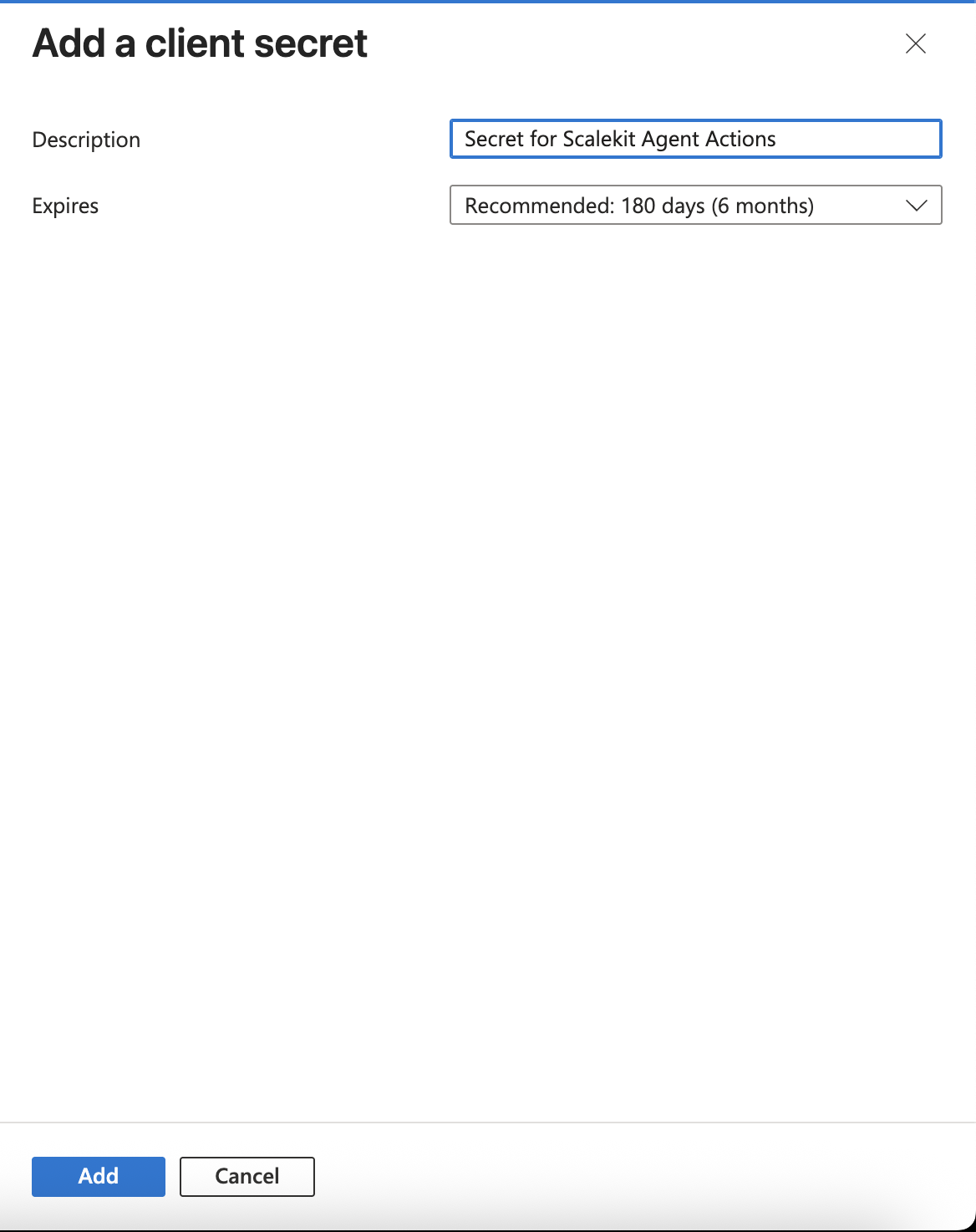
Enter a description (for example, “Secret for Scalekit Agent Actions”), set an expiry period, and click Add. Copy the secret Value immediately — it is only shown once.
-
-
Add credentials in Scalekit
-
In Scalekit dashboard, go to Agent Actions → Connections and open the Outlook connection you created.
-
Enter your credentials:
- Client ID — the Application (client) ID from the Azure app overview
- Client Secret — the secret value from Certificates & secrets
- Scopes — select the permissions your app needs (for example,
Calendars.Read,Calendars.ReadWrite,Mail.Read,Mail.ReadWrite,Mail.Send,Contacts.Read,Contacts.ReadWrite,User.Read,offline_access). See Microsoft Graph permissions reference for the full list.
-
Click Save.
-
Connect a user’s Outlook account and make API calls on their behalf — Scalekit handles OAuth and token management automatically.
You can interact with Outlook in two ways — via direct proxy API calls or via Scalekit optimized tool calls. Scroll down to see the list of available Scalekit tools.
Proxy API Calls
import { ScalekitClient } from '@scalekit-sdk/node';import 'dotenv/config';
const connectionName = 'outlook'; // get your connection name from connection configurationsconst identifier = 'user_123'; // your unique user identifier
// Get your credentials from app.scalekit.com → Developers → Settings → API Credentialsconst scalekit = new ScalekitClient( process.env.SCALEKIT_ENV_URL, process.env.SCALEKIT_CLIENT_ID, process.env.SCALEKIT_CLIENT_SECRET);const actions = scalekit.actions;
// Authenticate the userconst { link } = await actions.getAuthorizationLink({ connectionName, identifier,});console.log('🔗 Authorize Outlook:', link);process.stdout.write('Press Enter after authorizing...');await new Promise(r => process.stdin.once('data', r));
// Make a request via Scalekit proxyconst result = await actions.request({ connectionName, identifier, path: '/v1.0/me/messages', method: 'GET',});console.log(result);import scalekit.client, osfrom dotenv import load_dotenvload_dotenv()
connection_name = "outlook" # get your connection name from connection configurationsidentifier = "user_123" # your unique user identifier
# Get your credentials from app.scalekit.com → Developers → Settings → API Credentialsscalekit_client = scalekit.client.ScalekitClient( client_id=os.getenv("SCALEKIT_CLIENT_ID"), client_secret=os.getenv("SCALEKIT_CLIENT_SECRET"), env_url=os.getenv("SCALEKIT_ENV_URL"),)actions = scalekit_client.actions
# Authenticate the userlink_response = actions.get_authorization_link( connection_name=connection_name, identifier=identifier)# present this link to your user for authorization, or click it yourself for testingprint("🔗 Authorize Outlook:", link_response.link)input("Press Enter after authorizing...")
# Make a request via Scalekit proxyresult = actions.request( connection_name=connection_name, identifier=identifier, path="/v1.0/me/messages", method="GET")print(result)Scalekit Tools
Tool list
Section titled “Tool list”outlook_create_calendar_event
Section titled “outlook_create_calendar_event”Create a new calendar event in the user’s Outlook calendar. Supports attendees, recurrence, reminders, online meetings, multiple locations, and event properties.
| Name | Type | Required | Description |
|---|---|---|---|
attendees_optional | string | No | Array of email addresses for optional attendees |
attendees_required | string | No | Array of email addresses for required attendees |
attendees_resource | string | No | Array of email addresses for resources (meeting rooms, equipment) |
body_content | string | No | No description |
body_contentType | string | No | No description |
end_datetime | string | Yes | No description |
end_timezone | string | Yes | No description |
hideAttendees | boolean | No | When true, each attendee only sees themselves |
importance | string | No | Event importance level |
isAllDay | boolean | No | Mark as all-day event |
isOnlineMeeting | boolean | No | Create an online meeting (Teams/Skype) |
isReminderOn | boolean | No | Enable or disable reminder |
location | string | No | No description |
locations | string | No | JSON array of location objects with displayName, address, coordinates |
onlineMeetingProvider | string | No | Online meeting provider |
recurrence_days_of_week | string | No | Days of week for weekly recurrence (comma-separated) |
recurrence_end_date | string | No | End date for recurrence (YYYY-MM-DD), required if range_type is endDate |
recurrence_interval | integer | No | How often the event recurs (e.g., every 2 weeks = 2) |
recurrence_occurrences | integer | No | Number of occurrences, required if range_type is numbered |
recurrence_range_type | string | No | How the recurrence ends |
recurrence_start_date | string | No | Start date for recurrence (YYYY-MM-DD) |
recurrence_type | string | No | Recurrence pattern type |
reminderMinutesBeforeStart | integer | No | Minutes before event start to show reminder |
sensitivity | string | No | Event sensitivity/privacy level |
showAs | string | No | Free/busy status |
start_datetime | string | Yes | No description |
start_timezone | string | Yes | No description |
subject | string | Yes | No description |
outlook_create_contact
Section titled “outlook_create_contact”Create a new contact in the user’s mailbox with name, email addresses, and phone numbers.
| Name | Type | Required | Description |
|---|---|---|---|
givenName | string | Yes | First name of the contact |
surname | string | Yes | Last name of the contact |
emailAddresses | array | No | Array of email address objects with ‘address’ and optional ‘name’ fields |
businessPhones | array | No | Array of business phone numbers |
mobilePhone | string | No | Mobile phone number |
jobTitle | string | No | Job title |
companyName | string | No | Company name |
outlook_delete_calendar_event
Section titled “outlook_delete_calendar_event”Delete a calendar event by ID.
| Name | Type | Required | Description |
|---|---|---|---|
event_id | string | Yes | No description |
outlook_get_attachment
Section titled “outlook_get_attachment”Download a specific attachment from an Outlook email message by attachment ID. Returns the full attachment including base64-encoded file content in the contentBytes field.
| Name | Type | Required | Description |
|---|---|---|---|
message_id | string | Yes | The ID of the message containing the attachment |
attachment_id | string | Yes | The ID of the attachment to download |
outlook_get_calendar_event
Section titled “outlook_get_calendar_event”Retrieve an existing calendar event by ID from the user’s Outlook calendar.
| Name | Type | Required | Description |
|---|---|---|---|
event_id | string | Yes | No description |
outlook_get_message
Section titled “outlook_get_message”Retrieve a specific email message by ID from the user’s Outlook mailbox, including full body content, sender, recipients, attachments info, and metadata.
| Name | Type | Required | Description |
|---|---|---|---|
message_id | string | Yes | The ID of the message to retrieve |
outlook_list_attachments
Section titled “outlook_list_attachments”List all attachments on a specific Outlook email message. Returns attachment metadata including ID, name, size, and content type.
| Name | Type | Required | Description |
|---|---|---|---|
message_id | string | Yes | The ID of the message to list attachments for |
outlook_list_calendar_events
Section titled “outlook_list_calendar_events”List calendar events from the user’s Outlook calendar with filtering, sorting, pagination, and field selection.
| Name | Type | Required | Description |
|---|---|---|---|
filter | string | No | OData filter expression to filter events (e.g., startsWith(subject,‘All’)) |
orderby | string | No | OData orderby expression to sort events (e.g., start/dateTime desc) |
select | string | No | Comma-separated list of properties to include in the response |
skip | number | No | Number of events to skip for pagination |
top | number | No | Maximum number of events to return |
outlook_update_calendar_event
Section titled “outlook_update_calendar_event”Update an existing Outlook calendar event. Only provided fields will be updated. Supports time, attendees, location, reminders, online meetings, recurrence, and event properties.
| Name | Type | Required | Description |
|---|---|---|---|
attendees_optional | string | No | Comma-separated optional attendee emails |
attendees_required | string | No | Comma-separated required attendee emails |
attendees_resource | string | No | Comma-separated resource emails (meeting rooms, equipment) |
body_content | string | No | Event description/body |
body_contentType | string | No | Content type of body |
categories | string | No | Comma-separated categories |
end_datetime | string | No | Event end time in RFC3339 format |
end_timezone | string | No | Timezone for end time |
event_id | string | Yes | The ID of the calendar event to update |
hideAttendees | boolean | No | When true, each attendee only sees themselves |
importance | string | No | Event importance level |
isAllDay | boolean | No | Mark as all-day event |
isOnlineMeeting | boolean | No | Create an online meeting (Teams/Skype) |
isReminderOn | boolean | No | Enable or disable reminder |
location | string | No | Physical or virtual location |
locations | string | No | JSON array of location objects with displayName, address, coordinates |
onlineMeetingProvider | string | No | Online meeting provider |
recurrence_days_of_week | string | No | Days of week for weekly recurrence (comma-separated) |
recurrence_end_date | string | No | End date for recurrence (YYYY-MM-DD) |
recurrence_interval | integer | No | How often the event recurs (e.g., every 2 weeks = 2) |
recurrence_occurrences | integer | No | Number of occurrences |
recurrence_range_type | string | No | How the recurrence ends |
recurrence_start_date | string | No | Start date for recurrence (YYYY-MM-DD) |
recurrence_type | string | No | Recurrence pattern type |
reminderMinutesBeforeStart | integer | No | Minutes before event start to show reminder |
sensitivity | string | No | Event sensitivity/privacy level |
showAs | string | No | Free/busy status |
start_datetime | string | No | Event start time in RFC3339 format |
start_timezone | string | No | Timezone for start time |
subject | string | No | Event title/summary |
outlook_list_contacts
Section titled “outlook_list_contacts”List all contacts in the user’s mailbox with support for filtering, pagination, and field selection.
| Name | Type | Required | Description |
|---|---|---|---|
$filter | string | No | Filter expression to narrow results (OData) |
$orderby | string | No | Property to sort by (e.g., “displayName”) |
$select | string | No | Comma-separated list of properties to return |
$skip | integer | No | Number of contacts to skip for pagination |
$top | integer | No | Number of contacts to return (default: 10) |
outlook_list_messages
Section titled “outlook_list_messages”List all messages in the user’s mailbox with support for filtering, pagination, and field selection. Returns 10 messages by default.
| Name | Type | Required | Description |
|---|---|---|---|
$filter | string | No | Filter expression to narrow results (OData) |
$orderby | string | No | Property to sort by (e.g., “receivedDateTime desc”) |
$select | string | No | Comma-separated list of properties to return |
$skip | integer | No | Number of messages to skip for pagination |
$top | integer | No | Number of messages to return (1-1000, default: 10) |
outlook_mailbox_settings_get
Section titled “outlook_mailbox_settings_get”Retrieve the mailbox settings for the signed-in user. Returns automatic replies (out-of-office) configuration, language, timezone, working hours, date/time format, and delegate meeting message delivery preferences.
outlook_mailbox_settings_update
Section titled “outlook_mailbox_settings_update”Update mailbox settings for the signed-in user. Supports configuring automatic replies (out-of-office), language, timezone, working hours, date/time format, and delegate meeting message delivery preferences. Only fields provided will be updated.
| Name | Type | Required | Description |
|---|---|---|---|
automaticRepliesSetting | object | No | Configuration for automatic replies (out-of-office). Includes status, internalReplyMessage, externalReplyMessage, externalAudience, scheduledStartDateTime, scheduledEndDateTime |
dateFormat | string | No | Preferred date format string (e.g., ‘MM/dd/yyyy’) |
delegateMeetingMessageDeliveryOptions | string | No | Controls how meeting messages are delivered when a delegate is configured |
language | object | No | Language and locale. Properties: locale (string), displayName (string) |
timeFormat | string | No | Preferred time format string (e.g., ‘hh:mm tt’ or ‘HH:mm’) |
timeZone | string | No | Preferred time zone (e.g., ‘UTC’, ‘Pacific Standard Time’) |
workingHours | object | No | Working hours config. Properties: daysOfWeek (array), startTime, endTime, timeZone |
outlook_reply_to_message
Section titled “outlook_reply_to_message”Reply to an existing email message. The reply is automatically sent to the original sender and saved in the Sent Items folder.
| Name | Type | Required | Description |
|---|---|---|---|
messageId | string | Yes | The unique identifier of the message to reply to |
comment | string | Yes | Reply message content |
outlook_search_messages
Section titled “outlook_search_messages”Search messages by keywords across subject, body, sender, and other fields. Returns matching messages with support for pagination.
| Name | Type | Required | Description |
|---|---|---|---|
query | string | Yes | Search query string (searches across subject, body, from, to) |
$select | string | No | Comma-separated list of properties to return |
$skip | integer | No | Number of messages to skip for pagination |
$top | integer | No | Number of messages to return (1-1000, default: 10) |
outlook_send_message
Section titled “outlook_send_message”Send an email message using Microsoft Graph API. The message is saved in the Sent Items folder by default.
| Name | Type | Required | Description |
|---|---|---|---|
subject | string | Yes | Subject line of the email |
body | string | Yes | Body content of the email |
toRecipients | array<string> | Yes | Array of email addresses to send to |
bodyType | string | No | Content type of the body (Text or HTML) |
ccRecipients | array | No | Array of email addresses to CC |
bccRecipients | array | No | Array of email addresses to BCC |
saveToSentItems | boolean | No | Save the message in Sent Items folder (default: true) |
outlook_todo_lists_create
Section titled “outlook_todo_lists_create”Create a new Microsoft To Do task list.
| Name | Type | Required | Description |
|---|---|---|---|
display_name | string | Yes | The name of the task list |
outlook_todo_lists_delete
Section titled “outlook_todo_lists_delete”Permanently delete a Microsoft To Do task list and all its tasks.
| Name | Type | Required | Description |
|---|---|---|---|
list_id | string | Yes | The ID of the task list to delete |
outlook_todo_lists_get
Section titled “outlook_todo_lists_get”Get a specific Microsoft To Do task list by ID.
| Name | Type | Required | Description |
|---|---|---|---|
list_id | string | Yes | The ID of the task list |
outlook_todo_lists_list
Section titled “outlook_todo_lists_list”List all Microsoft To Do task lists for the current user.
outlook_todo_lists_update
Section titled “outlook_todo_lists_update”Rename a Microsoft To Do task list.
| Name | Type | Required | Description |
|---|---|---|---|
list_id | string | Yes | The ID of the task list to update |
display_name | string | Yes | The new name for the task list |
outlook_todo_tasks_create
Section titled “outlook_todo_tasks_create”Create a new task in a Microsoft To Do task list with optional body, due date, importance, and reminder.
| Name | Type | Required | Description |
|---|---|---|---|
list_id | string | Yes | The ID of the task list to add the task to |
title | string | Yes | The title of the task |
body | string | No | The body/notes of the task (plain text) |
importance | string | No | The importance of the task: low, normal, or high |
status | string | No | The status: notStarted, inProgress, completed, waitingOnOthers, or deferred |
due_date | string | No | Due date in YYYY-MM-DD format |
due_time_zone | string | No | Time zone for the due date (defaults to UTC) |
reminder_date_time | string | No | Reminder date and time in ISO 8601 format |
reminder_time_zone | string | No | Time zone for the reminder (defaults to UTC) |
categories | array | No | Array of category names to assign to the task |
outlook_todo_tasks_delete
Section titled “outlook_todo_tasks_delete”Permanently delete a task from a Microsoft To Do task list.
| Name | Type | Required | Description |
|---|---|---|---|
list_id | string | Yes | The ID of the task list |
task_id | string | Yes | The ID of the task to delete |
outlook_todo_tasks_get
Section titled “outlook_todo_tasks_get”Get a specific task from a Microsoft To Do task list.
| Name | Type | Required | Description |
|---|---|---|---|
list_id | string | Yes | The ID of the task list |
task_id | string | Yes | The ID of the task |
outlook_todo_tasks_list
Section titled “outlook_todo_tasks_list”List all tasks in a Microsoft To Do task list with optional filtering and pagination.
| Name | Type | Required | Description |
|---|---|---|---|
list_id | string | Yes | The ID of the task list |
$top | integer | No | Number of tasks to return (default: 10) |
$skip | integer | No | Number of tasks to skip for pagination |
$filter | string | No | OData filter expression (e.g., “status eq ‘notStarted’“) |
$orderby | string | No | Property to sort by (e.g., “createdDateTime desc”) |
outlook_todo_tasks_update
Section titled “outlook_todo_tasks_update”Update a task in a Microsoft To Do task list. Only provided fields are changed.
| Name | Type | Required | Description |
|---|---|---|---|
list_id | string | Yes | The ID of the task list |
task_id | string | Yes | The ID of the task to update |
title | string | No | New title for the task |
body | string | No | New body/notes for the task (plain text) |
importance | string | No | The importance: low, normal, or high |
status | string | No | The status: notStarted, inProgress, completed, waitingOnOthers, or deferred |
due_date | string | No | Due date in YYYY-MM-DD format |
due_time_zone | string | No | Time zone for the due date (defaults to UTC) |
categories | array | No | Array of category names to assign |